
OneSignal provides a simple interface to push notification. It is a high reliable push notification services for web sites and Mobile applications.
Follow these simple steps to integrate OneSignal in AMP.
1. Getting started with Push Notifications in AMP
From the dashboard we go to left-hand side in Menu bar go to AMP option panel -> Settings ->Push Notification ->Enable One Signal Push Notification.
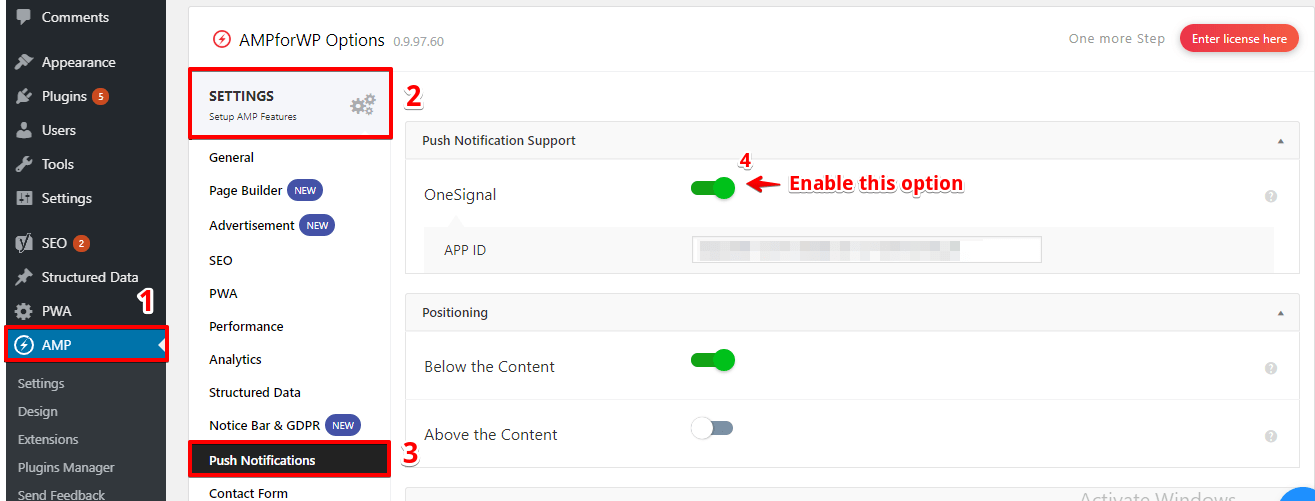
After that enable OneSignal Push Notification it will show APP ID option.
Follow the Step to install OneSignal Plugin:
1) Install OneSignal Plugin.
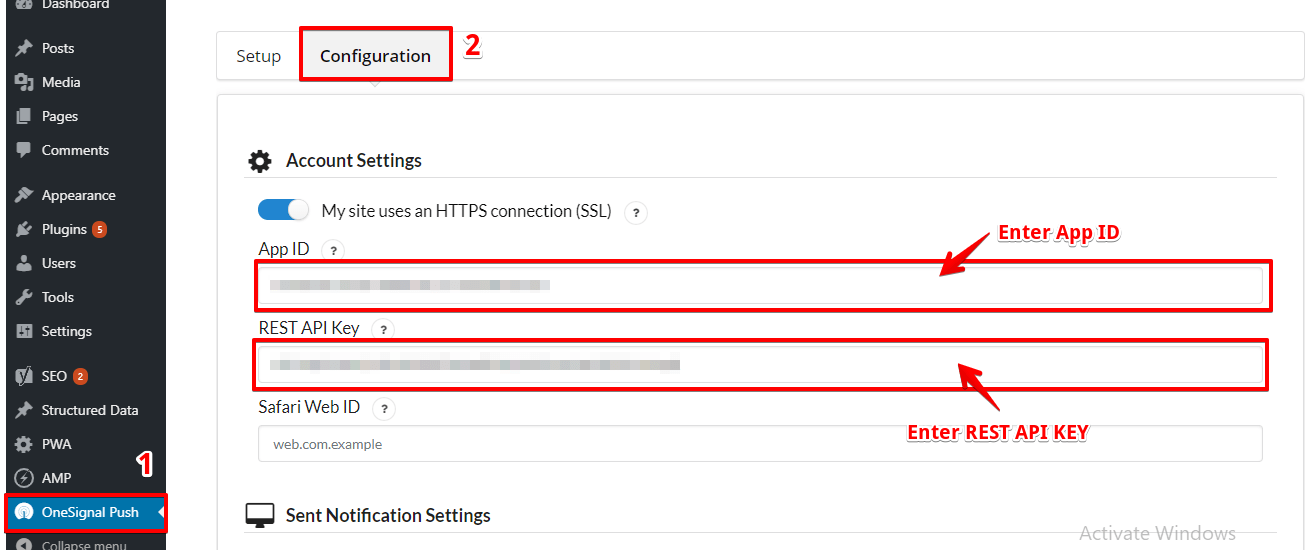
2) From the dashboard, we go to the left-hand side in Menu bar go to OneSignal Push
3) After that need to Set Up Option and Create a OneSignal Account.
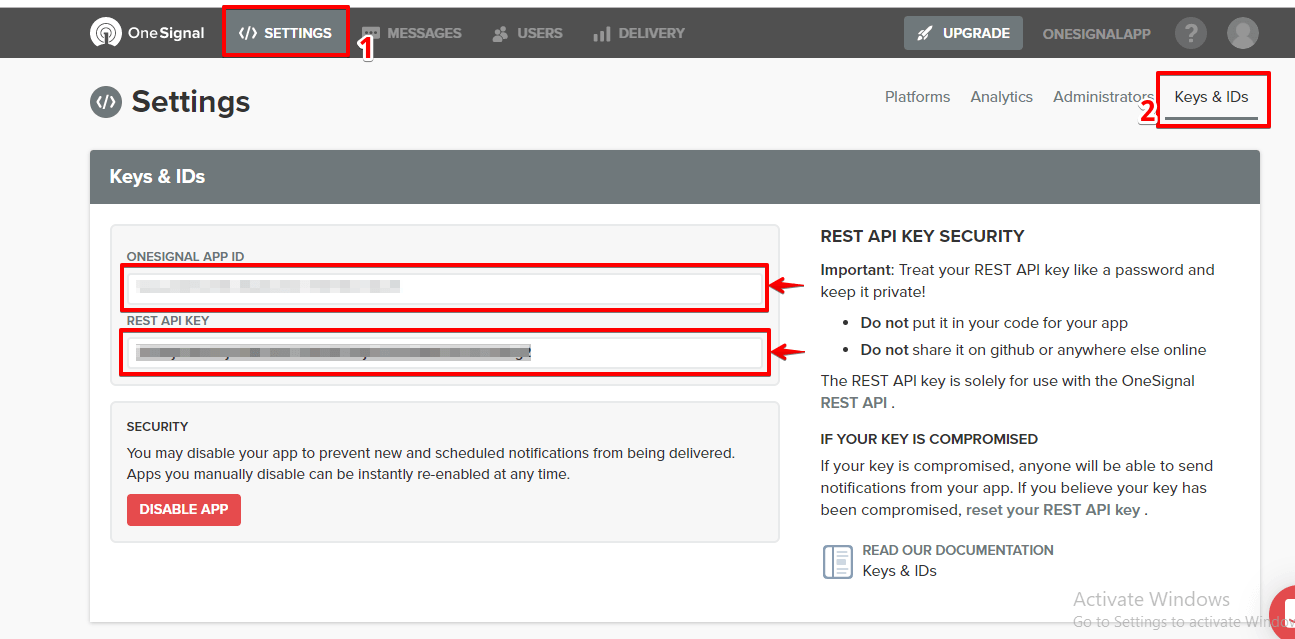
4) After that Created OneSignal Account. In this account key and ID’s will generated.
5) This key should be copy and past in OneSignal push option -> Configuration tab ->APP ID AND REST API key click on the save changes button.
2. Implement Push Notifications in AMP
In push Notification, you can set the APP ID. You can also already get this key from OneSignal Plugin settings:
Follow the Step to Set APP ID :
1) AMP optional panel -> Settings ->Push Notification option ->Enable OneSignal option -> Enter APP ID from OneSignal Account and the Click on the “Save Changes” button.

- Below the Content: Once you enable this option it will be show Subscribe Button Below the Content.
- Above the Content: Once you enable this option it will be show Subscribe Button Above the Content.
3. How to use OneSignal App without HTTPS
AMP web push is only compatible with URLs that begin with https://.
OneSignal still supports AMP web push for HTTP sites that use a subdomain of OneSignal (e.g. subdomain.os.tc), but when viewing the HTTP site as an AMP page, the site URL must be HTTPS.
When users view an AMP page on an actual mobile device, they are often directed by Google to a URL like “https://www.google.com/amp/www.site.com”. This means that HTTP sites that don’t ordinarily support HTTPS will actually support HTTPS thanks to Google if the AMP page is cached by Google and navigated from Google’s search results.
If your site doesn’t have an HTTPS connection(SSL)
Follow the Step for Experimental subdomain option :
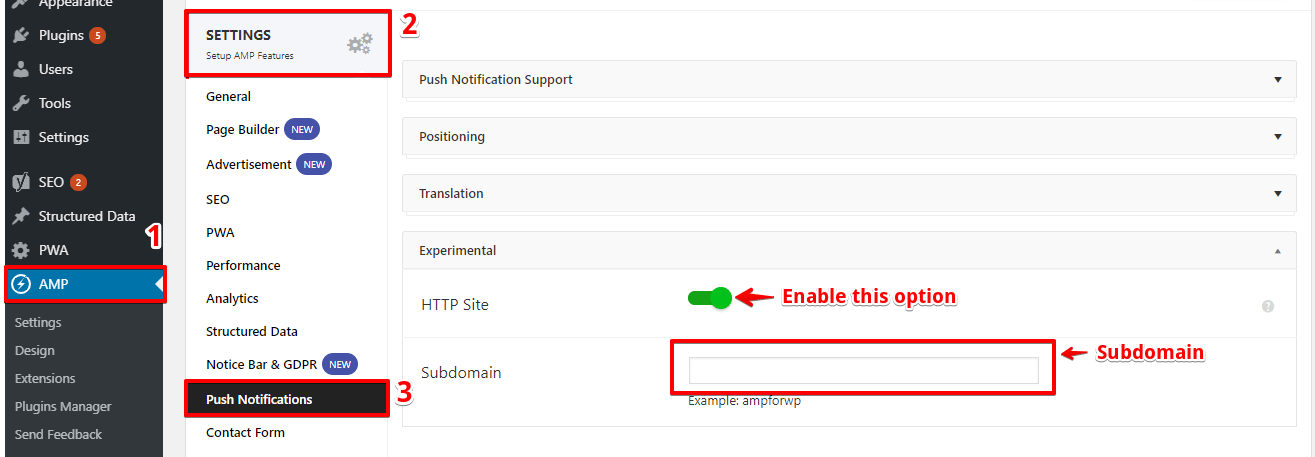
1) AMP optional panel -> Settings ->Push Notification option -> Experimental
2) First, enable the HTTP Site option and enter the subdomain:
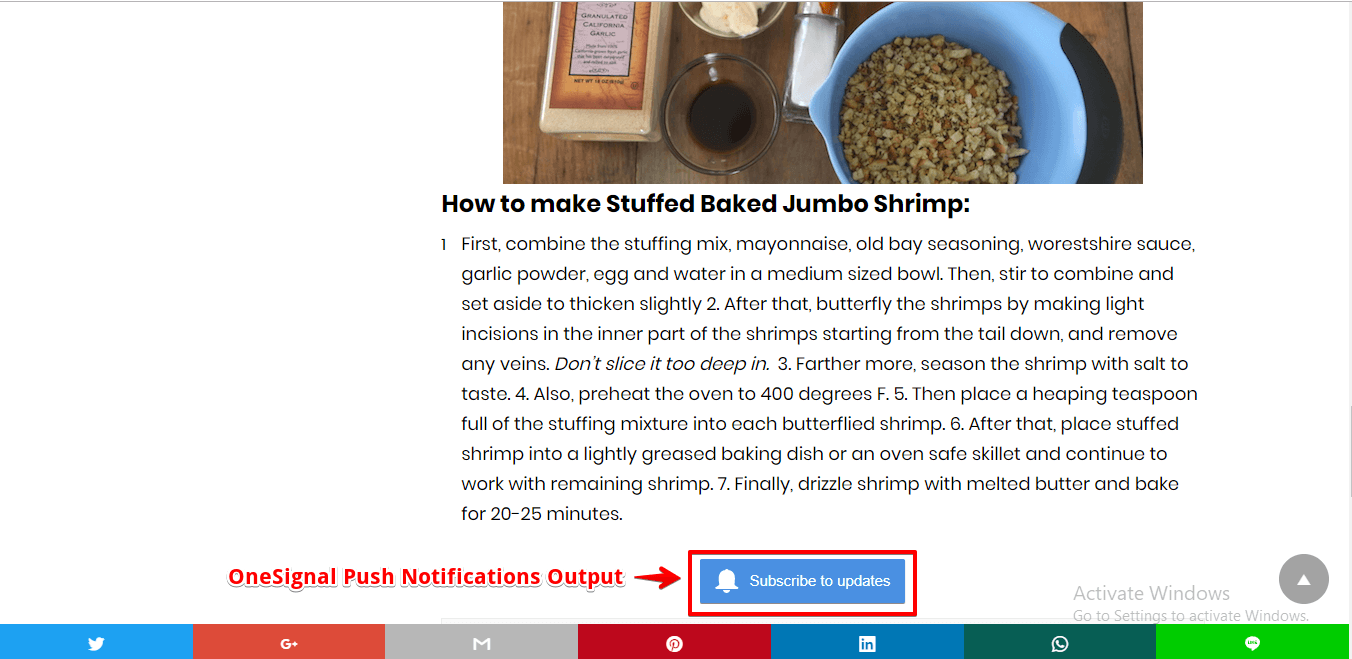
The Output Of OneSignal Push Notifications
Important Notes:
- Skip step 3 if your site uses an HTTPS connection (SSL)
- Resave The Permalinks
- It will not display push Notification on localhost. Your site must be on https.
That’s it for this tutorial!
We hope it helped you. If you have any feedback or questions, then please share them in the comments section below.
Hey Guys,
thank you for this Guide. I did the OneSignal implementation first manually, like described here: https://www.wpzeus.com/wordpress-enable-onesignal-button-google-amp/
But your Plugin makes it so much easier, thanks a lot!
Best Regards
Hello AMPs,
I followed the instruction setup above. but my website it still doesn’t work. I am using no https.
Here’s my website http:jiibyte.com
Thank you for the help
Hi Jii,
Will you please contact our technical team from here- https://ampforwp.com/support/ they will help you as soon as possible.
the one signal push notification not working in amp pages. so what now i can do?
iam use amp for wp pulgin.
Hi Sahil Salotra,
Will you please contact our technical team from here- https://ampforwp.com/support/ they will help you as soon as possible.
the onesignal push notification not working on amp pages. when anyone click on subscribe then nothing haeppens anything.
i am use SSL Cloudflare. Rocket Loader Already Off, Service Provider Hostinger, Website Run On WP, used AMP for WP pulgin.
Hi Sahil Salotra,
Will you please contact our technical team from here- https://ampforwp.com/support/ they will help you as soon as possible.
dear admin, my web https://viraloke.com using onesignal plugin, but when i tried configuring it with ampforwp it doesn’t work. Is it work on the new wordpress updated (5.6.2) ?
thank you
Hi viraloke,
Will you please contact our technical team from here- https://ampforwp.com/support/ they will help you as soon as possible.
i start this step by step but its not working in any platform, please help…….
Hi Rex Beldar,
Will you please contact our technical team from here- https://ampforwp.com/support/ they will help you as soon as possible.
Dear Developer, I am looking for some ways to add ads within the content I using your Plugin. Please have a look at https://etechbeta.com
Thanks
Hi Marcia,
Will you please elaborate more about your issue so that we will understand and help you.
hi guys it won’t work on AMP Takeover
Hi Sotoon,
Will you please contact our technical team from here- https://ampforwp.com/support/ they will help you as soon as possible.