
In order to redirect all mobile visitors to the AMP version of your site, you need to Enable an option called Mobile Redirection.
Follow the steps below to Redirect All mobile visitors to AMP:
- From your WordPress dashboard, go to your sidebar. Head on over to AMP option panel -> Click on Settings -> Advance Settings -> Turn ON Mobile Redirection and then click on the “Save Changes” button.
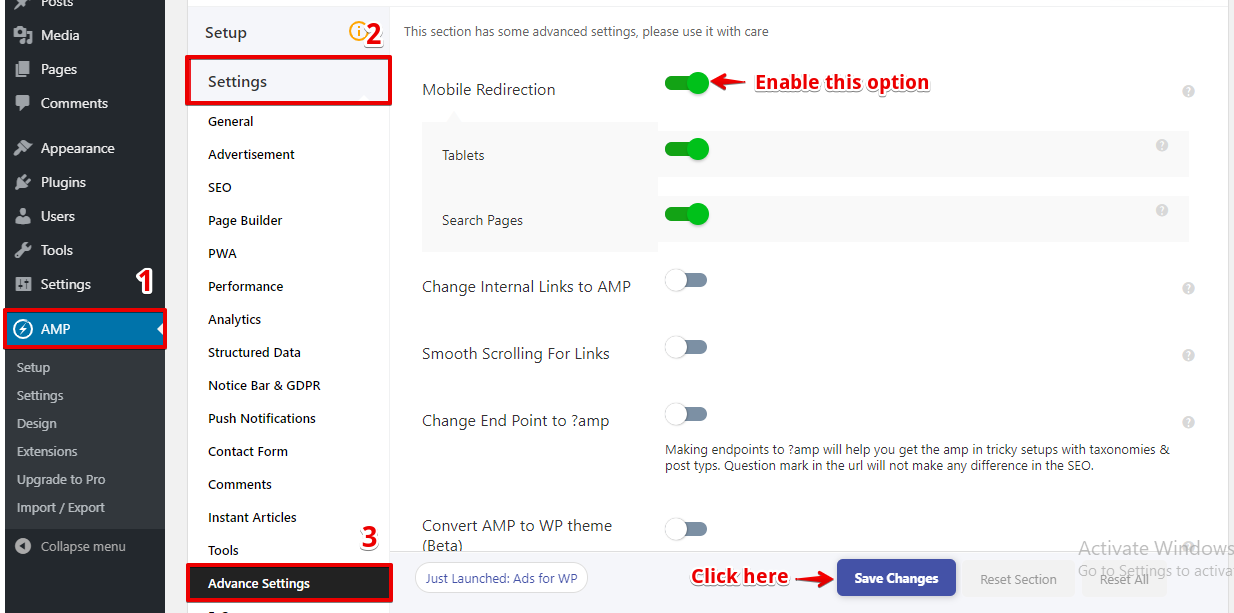
- Mobile Redirection: Once you enable this option it will be Redirect All mobile visitors to AMP.
Make sure you also enable
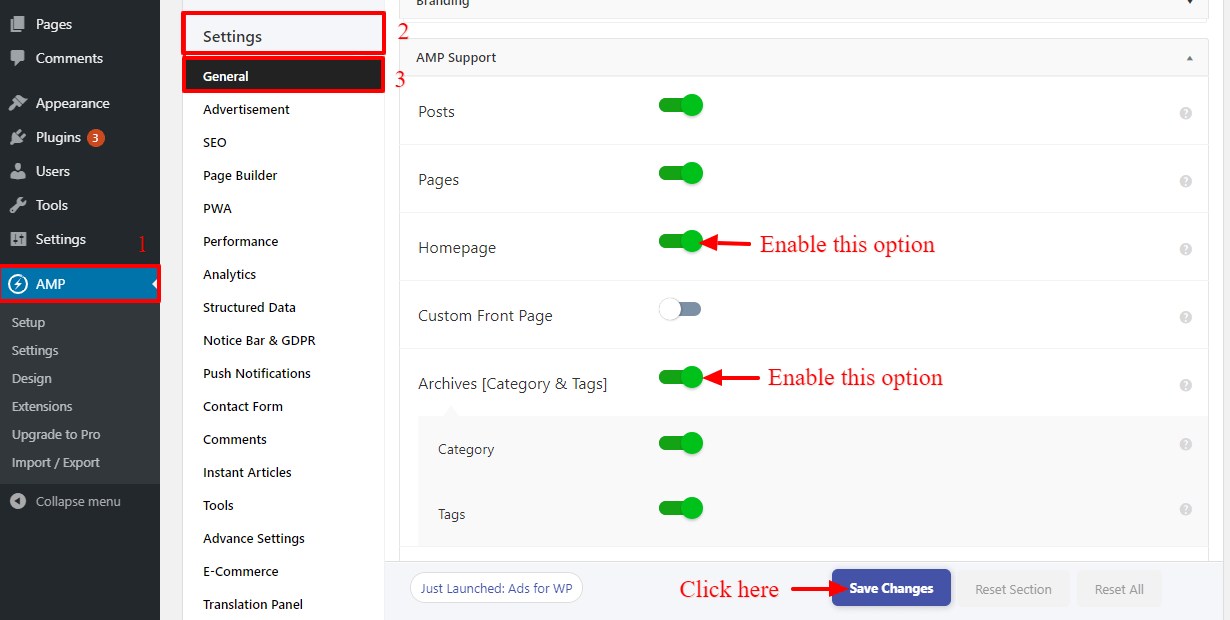
- Homepage Support: ON
- Archive Page Support: ON
Above the two option you will find in the WordPress Dashboard -> AMP -> Settings -> General -> Once you enable “Homepage” and “Archives[Category & Tags]” option inside “Category” and “Tags” option will be display and then click on the “Save Changes” button.
This way you can redirect all mobile visitors to AMP version of your website.
Mobile Redirection and Cache plugin
First of all, you need to separate cache file for the Mobile device and Desktop device.
Separate cache files for mobile devices and desktop in case you use one of the plugins mentioned below.
Once your site is loads mobile device or Desktop device it will serve a separate cache file for the different device.
Here is the list of cache plugin which supports the Mobile redirection.
- WP Rocket
- WP Super Cache
- W3 Total Cache
- Litespeed cache
- WP Fastest Cache
- SG optimizer
- Swift Performance
- WP-Optimize – Clean, Compress, Cache
Does Not support the Mobile redirection.
1. Reason why Breeze Cache not supports Mobile redirection in AMP
Breeze Cache does not allow mobile redirection functionality due to this it will not work in AMP. If you really need mobile redirection feature in amp then you have to disable breeze cache
2. Reason why Cloudflare not supports Mobile redirection in AMP
Cloudflare install in the server-side because of that reason it works on the high property and it does not allow mobile redirection and it will server the desktop version only. So please keep in mind that if you want mobile redirection then you need to disable Cloudflare and you cannot have both Cloudflare caching and mobile redirection at a time.
Note: Above this plugin does not support mobile cache.
If you have an issue regarding with the above plugin for Mobile redirection then Please leave your comments below.
1) How to enable mobile device caching in WP Rocket
Once you install WP Rocket plugin and activated then follow these steps:
1. Go to WordPress Admin Area -> Settings -> WP Rocket -> Cache -> Mobile Cache.
2. Enable caching for mobile devices: First, you have to select this option then it will show Separate cache files for mobile devices option.
3. Separate cache files for mobile devices: Once you select this option WP Rocket will create separate cache file for mobile devices.

4. Click on the save change button.
2) How to enable mobile device caching in WP Super Cache
Once you install WP Super Cache plugin and activated then follow these steps:
1. Go to WordPress Admin Area -> Settings ->WP Super Cache ->Click the Advanced tab.

4. By default, you should see the Mobile Device Support checkbox checked. If not, check the checkbox and Save the changes.
5. Purge WP Super Cache’s cache
3) How to enable mobile device caching in W3 Total Cache
Once you install W3 Total Cache plugin and activated then follow these steps:
1. Once installing W3 Total Cache plugin you will see the Performance option in WordPress dashboard.
2. Go to WordPress dashboard -> Performance ->User Agent Groups ->Enable this option in the phone and click on the save button.

4) How to enable mobile device caching in Litespeed cache
Once you install Litespeed cache plugin and activated then follow these steps:
1. Once installing Litespeed cache plugin you will see the Litespeed cache option in WordPress dashboard.
2. Go to the LiteSpeed Cache plugin’s -> Settings -> Click on the “Cache” tab

Scroll down a little to see this option

3. Enable the “Cache Mobile” settings click on the “Save Changes” button.
4. Purge LiteSpeed Cache’s cache
5) How to enable mobile device caching in WP Fastest Cache
Once you install WP Fastest Cache plugin and activated then follow these steps:
1. Once installing WP Fastest Cache plugin you will see the WP Fastest Cache option in WordPress dashboard.
2. Go to the Go to WordPress Admin Area -> WP Fastest Cache -> Settings > Check “Mobile” Option > after that click on the “Submit” button.

3. Purge WP Fastest Cache’s cache
6) How to enable mobile device caching in SG optimizer
Once you install and activated SG optimizer plugin mobile redirection will work perfectly no need to configure anything.
7) How to enable mobile device caching in Swift Performance
Once you install Swift Performance plugin and activated then follow these steps:
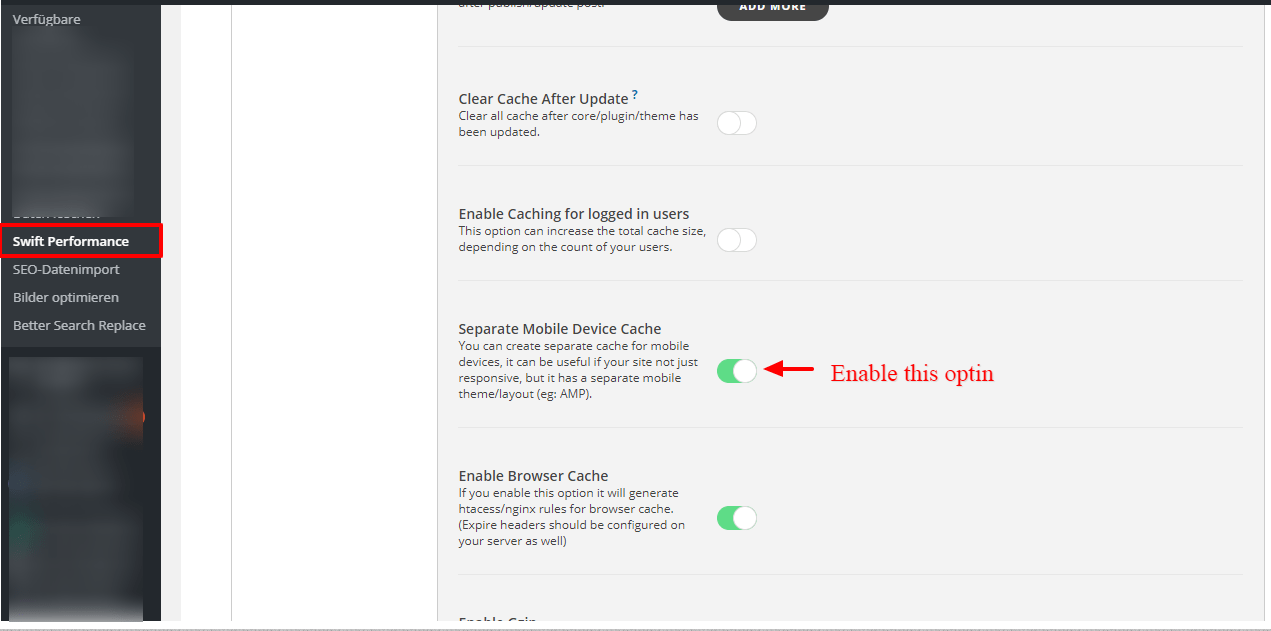
1. Go to WordPress Admin Area -> Swift Performance -> Settings -> Caching -> Separate Mobile Device Cache
2. Separate Mobile Device Cache: Once you select this option Swift Performance will create separate cache file for mobile devices.
3. Click on the Save change button.
8) How to enable mobile device caching in WP-Optimize – Clean, Compress, Cache
Once you install WP-Optimize – Clean, Compress, Cache plugin and activated then follow these steps:
1. Go to WordPress Admin Area -> Settings -> WP Optimize -> Cache -> Check this “Generate separate files for mobile devices” option.

3. Click on the Save change button.
That’s it for this tutorial!
We hope it helped you. If you have any feedback or questions, then please share them in the comments section below.
I followed this to enable all visitors to AMP and its working fine. Infact it has given me a good result on a low-end server-hosted blog named https://blucellphones.us and https://AppleiPhonetips.us/
Awesome I must say.
my site auto redirected on amp version in desktop… i checked all settings but not found any solutions
Check here https://karnatakastateopenuniversity.in/reet-answer-key.html
Hi neha,
Will you please contact our technical team from here- https://ampforwp.com/support/ they will help you as soon as possible.
How can I redirect all internal links between articles to the mobile version and not to the AMP version
Hi Nedal,
Will you please contact our technical team from here- https://ampforwp.com/support/ they will help you as soon as possible.
please check for https://appleiphonetips.us/ blog for Speed score. My site is performing bad, very bad especially in Mobile speed testing. First Content Paint, Next Content Paint are getting hurted. Please remove unused CSS or Javascripts or Animations for my blog.