
The General Data Protection Regulation in EU law on data protection and privacy for all individuals within the European Union and the European Economic Area.
Once you install and activate our AMPforWP plugin then we will have these two options
1. Basic Setup View
- If you are using Basic Setup View then you need to choose privacy settings and click on Choose button like below the screenshot.


- GDPR – Once you enable GDPR option the General Data Protection Regulation in EU law on data protection and privacy for all individuals within the European Union and the European Economic Area.
2. Advance Setup View
If you are using Advance Setup View then you need to follow the below steps.
1. Go to the WordPress Admin Area -> AMP Option Panel -> Notice bar & GDPR option and enable the GDPR Compliancy option.
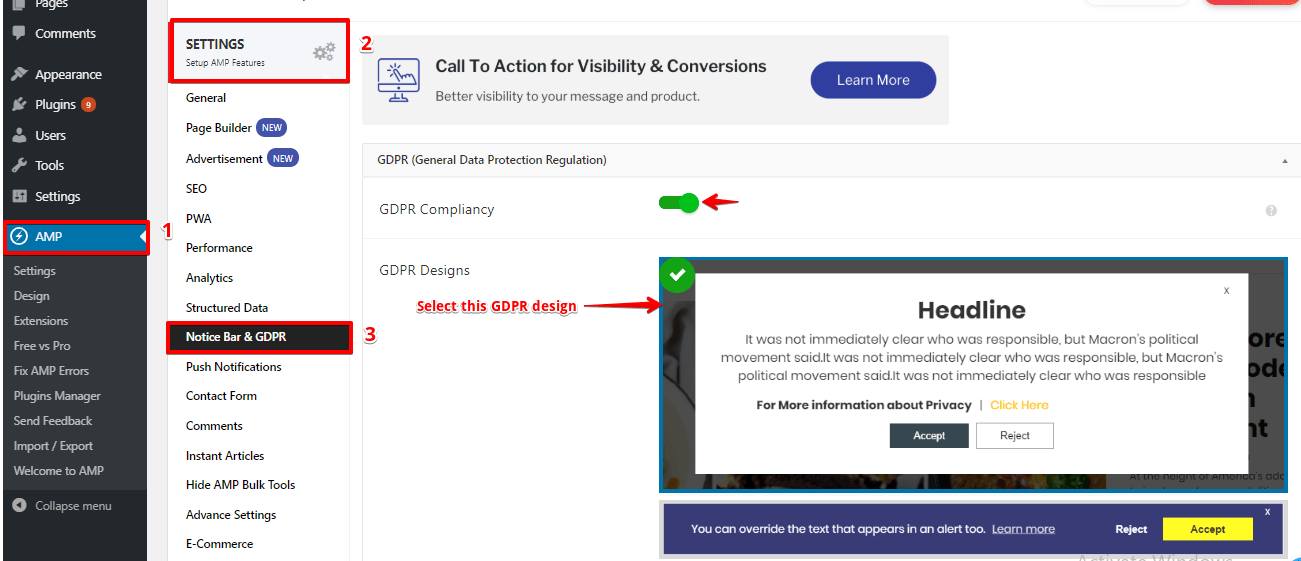
2. GDPR Designs: In this option, you need to select any one of the design.
Scroll down a little to see this option
3. Once you select the first design this option will appear like the below screenshot.

- Headline Text: In this field, you can enter the text for of Headline.
- Message to Visitor: In this option, you can write the message that you want to share with the audience.
- Accept Button Text: In this field, you can enter the text for of Accept Button.
- Reject Button Text: In this field, you can enter the text for of Reject Button
- Settings Button Text: In this field, you can enter the text for Settings Button.
- For More information: Text before the privacy page button.
- Select the Privacy Page: In this option, you can Select the Privacy Page to display.
- Privacy Page Button Text: In this field, you can enter the text for Privacy Page Button.
In GDPR design if you select the second design this option will appear like the below screenshot.
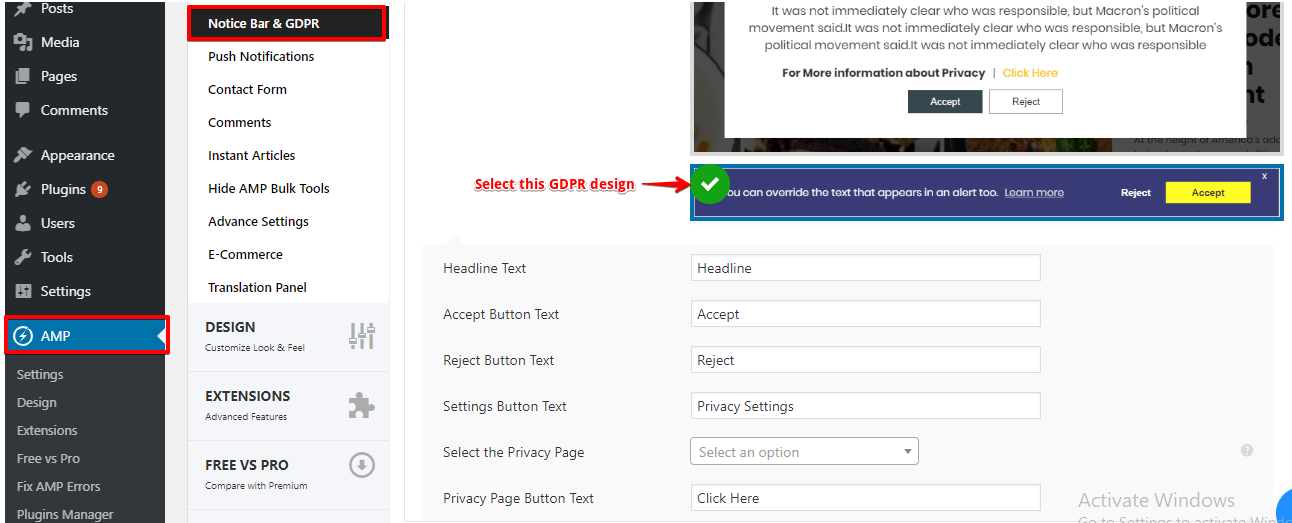
- Headline Text: In this field, you can enter the text for of Headline.
- Accept Button Text: In this field, you can enter the text for of Accept Button.
- Reject Button Text: In this field, you can enter the text for of Reject Button
- Settings Button Text: In this field, you can enter the text for Settings Button.
- Select the Privacy Page: In this option, you can Select the Privacy Page to display.
- Privacy Page Button Text: In this field, you can enter the text for Privacy Page Button.
Note:Before you enable the GDPR Compliancy, please make sure the site is HTTPS.
That’s it for this tutorial!
We hope it helped you. If you have any feedback or questions, then please share them in the comments section below.
Hello, I would like to know if there is a way to check why the GDPR bar does not work on my blog (graciayvida.com). I leave you an example publication: https://graciayvida.com/santiago-1-12-la-corona-de-la-vida/?amp
Hi Ariel,
Will you please contact our technical team from here- https://ampforwp.com/support/ they will help you as soon as possible.