
Now Google allows you to place Advertisements on the AMP page.
Go through the below steps for adding Advertisements in AMP page
- Login to Google Adsense Account
- Go to My ads tab
- Create New Ad Unit or Select Existing ad unit of any size
- Copy the AD Slot Id and Publisher Id
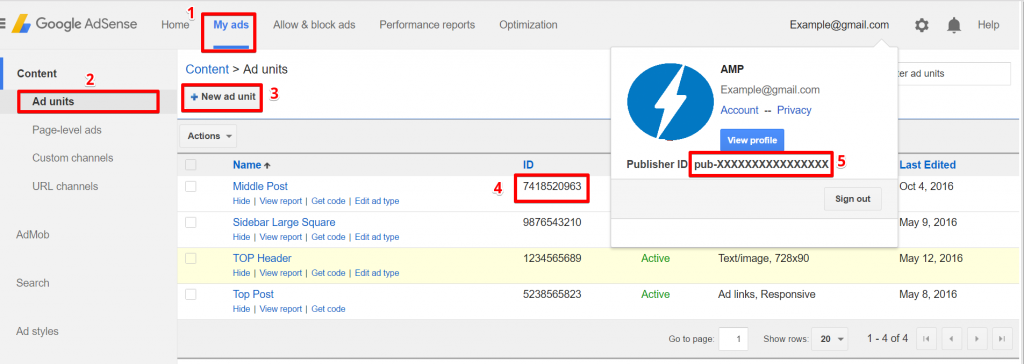
Login to WordPress Admin panel –> Navigate to AMP option panel -> Settings ->Advertisement -> Select the size of Ad and paste the Publisher Id and Ad Slot Id to their respective fields.

We have 6 Advertisement Positions if you want more Advertisement we have Ads for wp extension it’s a free extension.
In the Advertisement section, we provide users to place Ads in 6 possible places.
- Below the Header: Advertisement is shown below the header(sitewide).
- Below the Footer: Advertisement is shown below the Footer(sitewide).
- Above the Post Content: Advertisement is shown above the Post Content.
- Below the Post Content: Advertisement is shown below the Post Content (single post).
- Below the Title (Single Post): Advertisement is shown below the title Content (single post).
- Above the Related Post (Single Post): Advertisement is shown above the Related Post Content (single post).
In order to place Ads in those sections, simply Turn ON them.
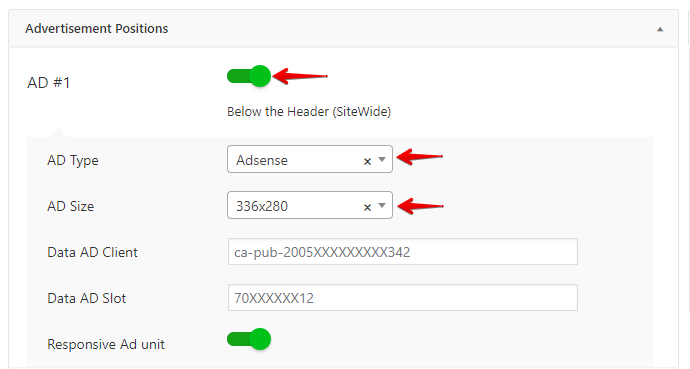
When you Turn on Ad #1, it will ask you to provide the AD Size, Data AD Client, Data AD Slot.
- AD Type: In this option select Ad type as per your requirement
- AD Size: It can be anything depending on your choice.
- Data AD Client: It is nothing but your Adsense Publisher ID
- Data AD Slot: It is a unique Advertisement which can be found in the Adsense Ad Code.
- Responsive Ad Unite: Once you enable this option Ad will be shown into responsive.
Optimize For Viewability
You can increase the loading speed of the Ads by enabling the “Optimize For Viewability” option present in AMP option panel -> Settings > Advertisement.

Sponsorship Label
Another special thing about these ads is you can even add the Label on Ads like Sponsored, Advertisement, etc..,
The below options can be seen in the picture below.

To check the ads open up the Website by /amp in End (http://Example.com/amp) disabling the adblocker. (Check the screenshot below)

That’s it for this tutorial!
We hope it helped you. If you have any feedback or questions, then please share them in the comments section below.
I have removed my website from Google Adsense, and have removed the codes also from AMP. However I am unable to post any Adds on AMP, it shows a blank white box and nothing elsewhere, google Ads used to be there. I can’t insert Adds on AMP version on the entire website, AMP adds are showing only on my HOMEpage.
https://waystoliveup.com is the website, I am talking about.
this is utterly frustrating. All adds come up nicely on the web version. I am using Ad Inserter and Adsterra for the ads.
Can I expect a response and guidelines?
thank you
Hi Robin,
Will you please contact our technical team from here- https://ampforwp.com/support/ they will help you as soon as possible.