



We hope it helped you. If you have any feedback or questions, then please share them in the comments section below.
To create a new link ad unit that you can manage within your AdSense account, follow these steps:
let’s have a look at Adsense Link Ads Sizes
There is a total of 7 types of Links ads in Google Adsense. Among 7 there are only 4 link Ads, which Appear best and perform well in AMP.
Once you get “data-ad-client” and “data-ad-slot” you need to follow below steps
In order to place link Ads in Accelerated Mobile Pages, one must use Advance AMP Ads Extension. If you don’t know, how to install Advance AMP Ads Extension Plugin, Here is a Quick guide, which lets you install Advance AMP Ads Extension.
First, go to WordPress Admin Area -> AMP option panel -> Advance AMP Ads
I am choosing Incontent Ad #1 & Incontent Ad #2, for better understanding the Use of Link Ads in AMP. I am going to place two Different link Ads to show how they perform.
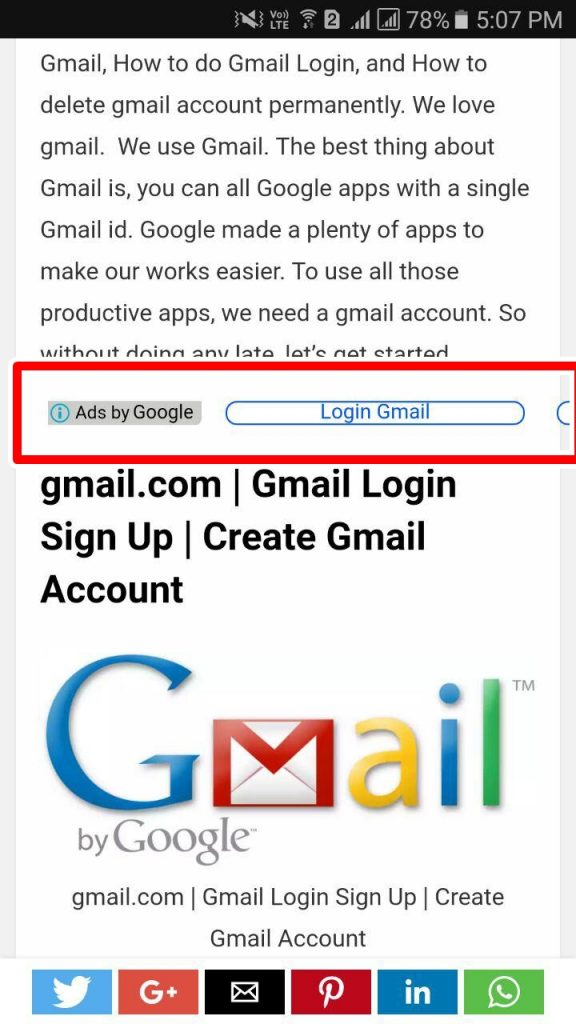
For instance, I chose 728×15, let’s see how it looks in AMP
You can see, how small does 728×15 look in AMP.
So I recommend you to choose link ads which are having Appropriate Width and Height. For example, consider 200×90
In Incontent Ad #2, I chose Adsense Link Ad size 200×90.
Let’s see how 200×90 Link Ad appear in AMP
200×90 looks perfect in AMP version of your website. Isn’t it?
So it is recommended to use Adsense Link Ads which are having Appropriate Width & Height.
That’s it for this tutorial!
We hope it helped you. If you have any feedback or questions, then please share them in the comments section below.
If you want to add an AWeber form in AMP then first you need to…
Webpushr is the fastest growing web push notifications platform that marketers love & developers rely…
Follow these steps to add Adobe Analytics in AMP Step 1: Go to WordPress Admin Area -> AMP…
Core Web Vitals are the subset of Web Vitals that apply to all web pages,…
The following reasons can be shown for non-indexing. Server error (5xx) Your server returned a 500-level…
We have added the Google Analytics 4 ( GA 4 ) integration in AMPforWP v1.0.80.…