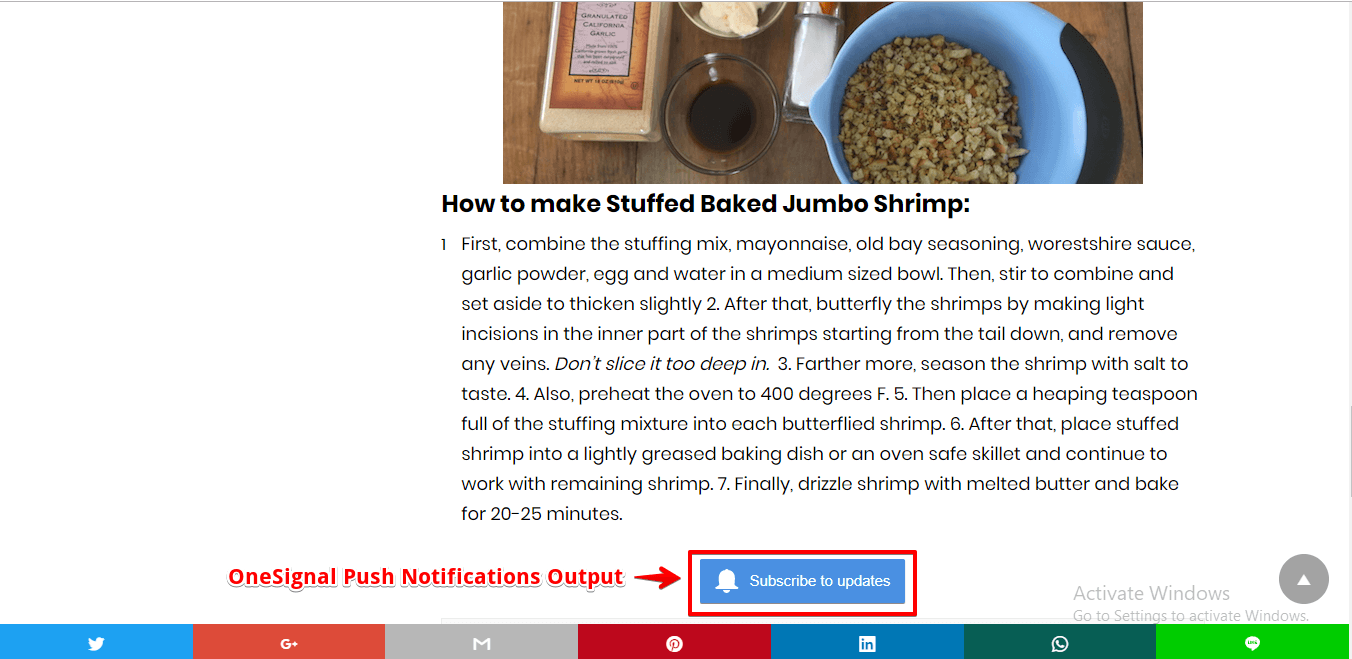
OneSignal provides a simple interface to push notification. It is a high reliable push notification services for web sites and Mobile applications.
Follow these simple steps to integrate OneSignal in AMP.
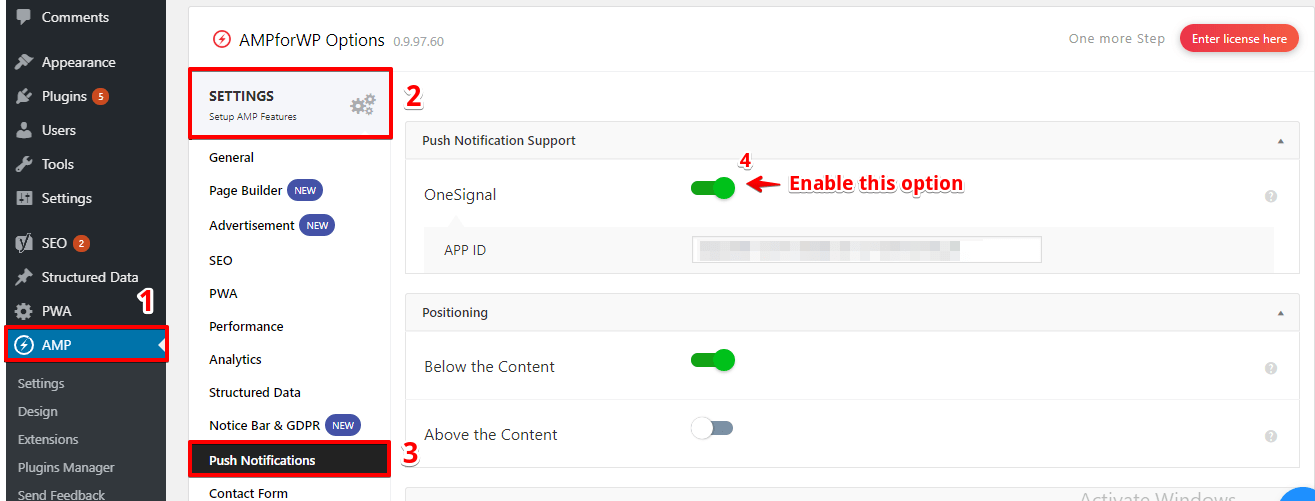
From the dashboard we go to left-hand side in Menu bar go to AMP option panel -> Settings ->Push Notification ->Enable One Signal Push Notification.
After that enable OneSignal Push Notification it will show APP ID option.
Follow the Step to install OneSignal Plugin:
1) Install OneSignal Plugin.
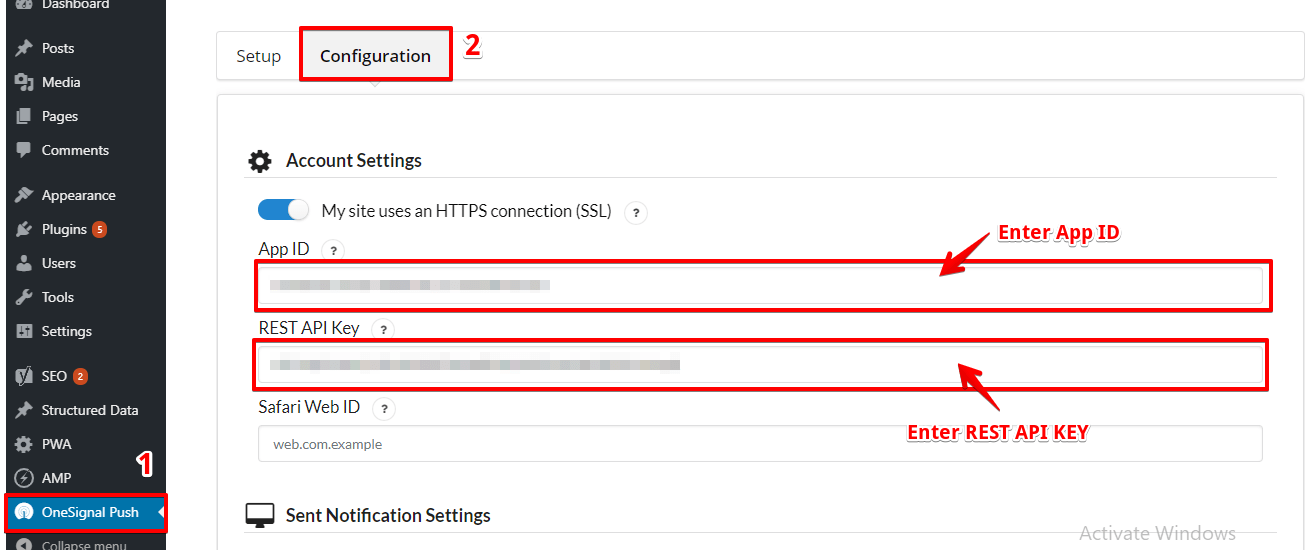
2) From the dashboard, we go to the left-hand side in Menu bar go to OneSignal Push
3) After that need to Set Up Option and Create a OneSignal Account.
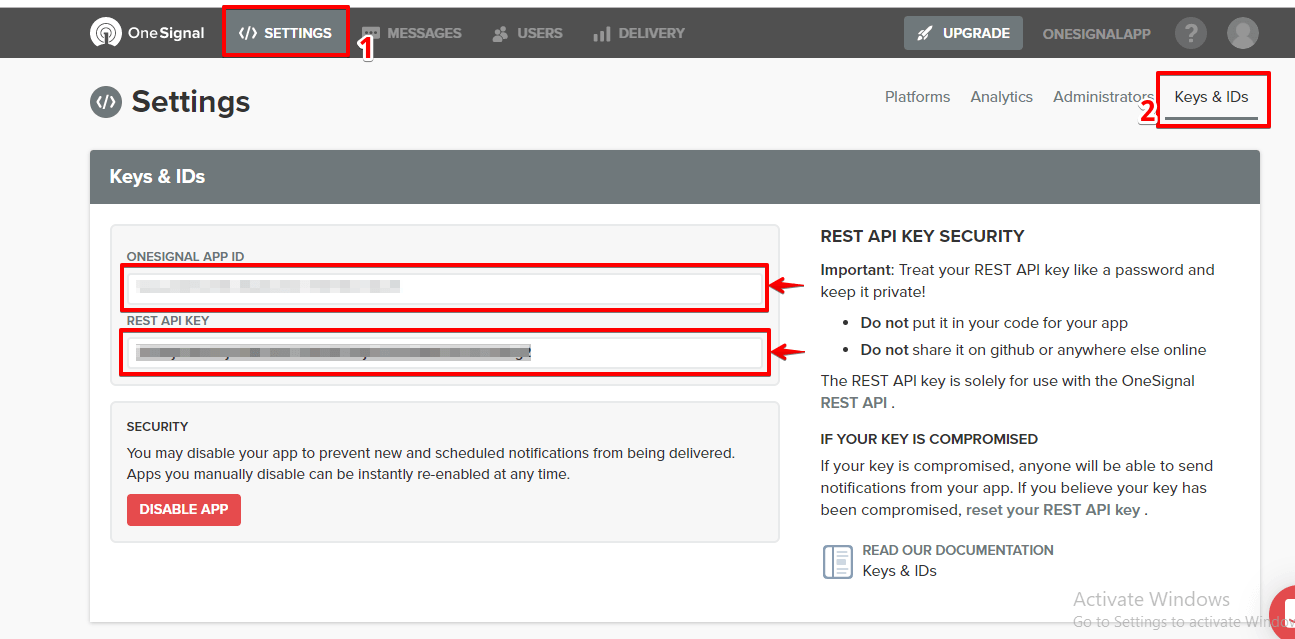
4) After that Created OneSignal Account. In this account key and ID’s will generated.
5) This key should be copy and past in OneSignal push option -> Configuration tab ->APP ID AND REST API key click on the save changes button.
In push Notification, you can set the APP ID. You can also already get this key from OneSignal Plugin settings:
Follow the Step to Set APP ID :
1) AMP optional panel -> Settings ->Push Notification option ->Enable OneSignal option -> Enter APP ID from OneSignal Account and the Click on the “Save Changes” button.
AMP web push is only compatible with URLs that begin with https://.
OneSignal still supports AMP web push for HTTP sites that use a subdomain of OneSignal (e.g. subdomain.os.tc), but when viewing the HTTP site as an AMP page, the site URL must be HTTPS.
When users view an AMP page on an actual mobile device, they are often directed by Google to a URL like “https://www.google.com/amp/www.site.com”. This means that HTTP sites that don’t ordinarily support HTTPS will actually support HTTPS thanks to Google if the AMP page is cached by Google and navigated from Google’s search results.
If your site doesn’t have an HTTPS connection(SSL)
Follow the Step for Experimental subdomain option :
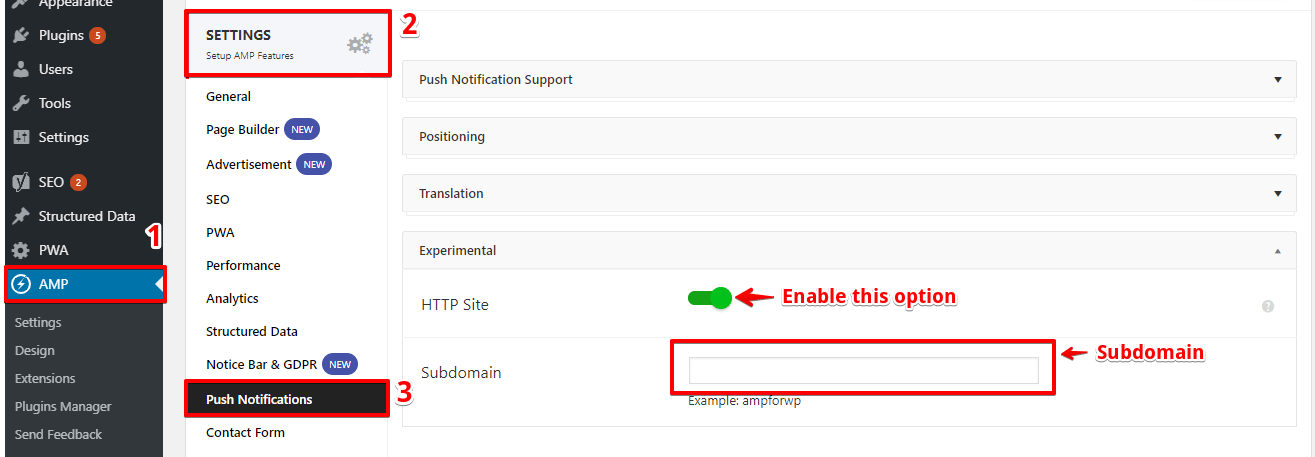
1) AMP optional panel -> Settings ->Push Notification option -> Experimental
2) First, enable the HTTP Site option and enter the subdomain:
That’s it for this tutorial!
We hope it helped you. If you have any feedback or questions, then please share them in the comments section below.
If you want to add an AWeber form in AMP then first you need to…
Webpushr is the fastest growing web push notifications platform that marketers love & developers rely…
Follow these steps to add Adobe Analytics in AMP Step 1: Go to WordPress Admin Area -> AMP…
Core Web Vitals are the subset of Web Vitals that apply to all web pages,…
The following reasons can be shown for non-indexing. Server error (5xx) Your server returned a 500-level…
We have added the Google Analytics 4 ( GA 4 ) integration in AMPforWP v1.0.80.…