Search in AMP

How to enable Search in AMP?

Follow the Step for enable Search:

  • From the dashboard we go to left hand side in Menu bar go to AMP option panel -> Design Option ->  Header


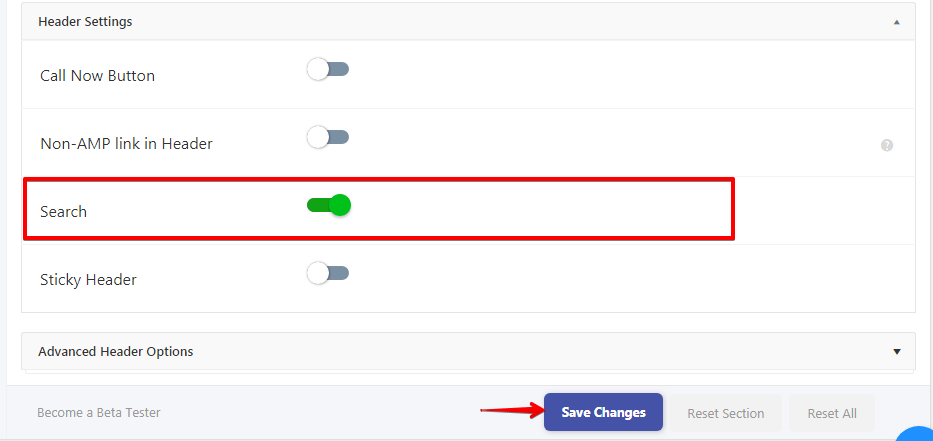
  •  Next, scroll down to the Header Settings at the bottom of the screen.

  • Search: Once you enable the Search Option, Search icon will be display on Header and then click on the “Save Changes” button.

That’s it for this tutorial!

We hope it helped you. If you have any feedback or questions, then please share them in the comments section below.

Share
Published by
Marqas

How to create an AWeber form in AMP

If you want to add an AWeber form in AMP then first you need to…

3 years ago

How to setup webpushr notification in AMP

Webpushr is the fastest growing web push notifications platform that marketers love & developers rely…

3 years ago

How to add Adobe Analytics in AMP

Follow these steps to add Adobe Analytics in AMP Step 1: Go to WordPress Admin Area -> AMP…

3 years ago

What is the CWV plugin all about

Core Web Vitals are the subset of Web Vitals that apply to all web pages,…

4 years ago

How to fix “Alternate page with proper canonical tag” Page Index issue in Google Search Console

The following reasons can be shown for non-indexing. Server error (5xx) Your server returned a 500-level…

4 years ago

Google Analytics ( GA4 ) integration in AMPforWP

We have added the Google Analytics 4 ( GA 4 ) integration in AMPforWP v1.0.80.…

4 years ago