Now Google allows you to place Advertisements on the AMP page.
Go through the below steps for adding Advertisements in AMP page
Login to WordPress Admin panel –> Navigate to AMP option panel -> Settings ->Advertisement -> Select the size of Ad and paste the Publisher Id and Ad Slot Id to their respective fields.
We have 6 Advertisement Positions if you want more Advertisement we have Ads for wp extension it’s a free extension.
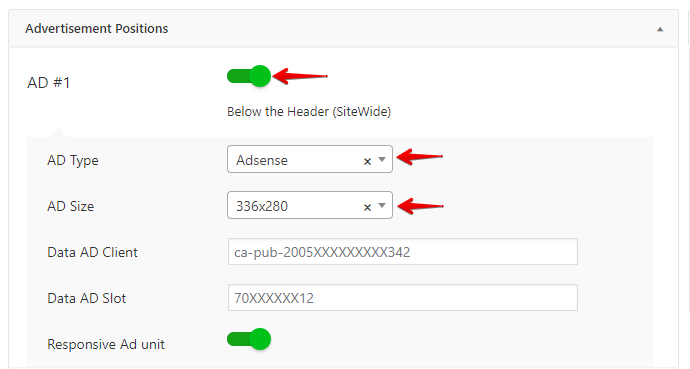
In the Advertisement section, we provide users to place Ads in 6 possible places.
In order to place Ads in those sections, simply Turn ON them.
When you Turn on Ad #1, it will ask you to provide the AD Size, Data AD Client, Data AD Slot.
You can increase the loading speed of the Ads by enabling the “Optimize For Viewability” option present in AMP option panel -> Settings > Advertisement.
Another special thing about these ads is you can even add the Label on Ads like Sponsored, Advertisement, etc..,
The below options can be seen in the picture below.
To check the ads open up the Website by /amp in End (http://Example.com/amp) disabling the adblocker. (Check the screenshot below)
That’s it for this tutorial!
We hope it helped you. If you have any feedback or questions, then please share them in the comments section below.
If you want to add an AWeber form in AMP then first you need to…
Webpushr is the fastest growing web push notifications platform that marketers love & developers rely…
Follow these steps to add Adobe Analytics in AMP Step 1: Go to WordPress Admin Area -> AMP…
Core Web Vitals are the subset of Web Vitals that apply to all web pages,…
The following reasons can be shown for non-indexing. Server error (5xx) Your server returned a 500-level…
We have added the Google Analytics 4 ( GA 4 ) integration in AMPforWP v1.0.80.…