It’s a very easy process for Updating the plugin.
There are two ways to update a plugin.
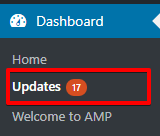
In this, you’ll be seeing a notification on the dashboard ->Updates
Once you click on this option all plugins and theme whose updates are available will be shown here
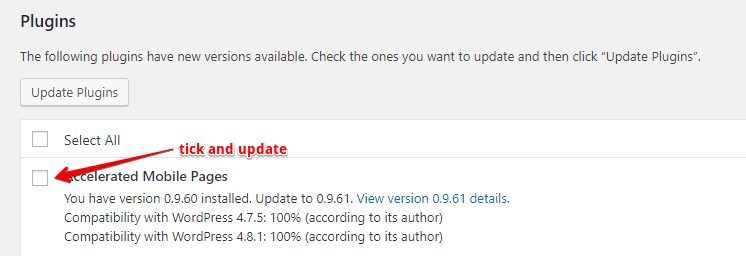
you can select the plugin and check the ones you want to update after that click on the update plugins button. It will be Automatically updated.
Sometimes you may not be able to update a plugin automatically ( update failed ) so the solution to this is the Manual way.
Here you need to download the latest version of the plugin
there are a couple of things to take into consideration when you go for a manual update that is if you have made custom changes have a backup.
And before you upload and activate delete the existing one to prevent the activation failure and upload it through FTP or Cpanel.
That’s it for this article!
We hope it helped you. If you have any feedback or questions, then please share them in the comments section below.
If you want to add an AWeber form in AMP then first you need to…
Webpushr is the fastest growing web push notifications platform that marketers love & developers rely…
Follow these steps to add Adobe Analytics in AMP Step 1: Go to WordPress Admin Area -> AMP…
Core Web Vitals are the subset of Web Vitals that apply to all web pages,…
The following reasons can be shown for non-indexing. Server error (5xx) Your server returned a 500-level…
We have added the Google Analytics 4 ( GA 4 ) integration in AMPforWP v1.0.80.…