After installing & activating AMP for WP plugins, you have to Upload one more extension Named “ Advance AMP Ads ” Extension, in order to use DoubleClick Ads (DFP), In content Ads, Sticky Ads on your AMP. You can also place Third Party Ads using Advance AMP Ads.
Here are few simple steps to place DFP Ads in AMP using Advance AMP Ads Extension.
After downloading Advance AMP Ads Extension follow the below-given steps.
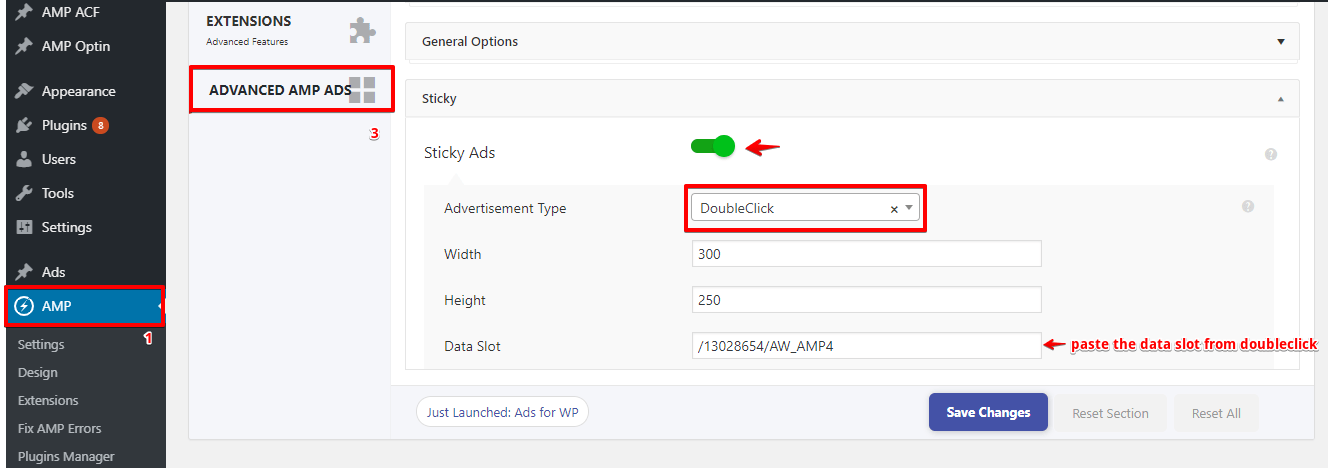
1. Go to WordPress admin area -> AMP option panel -> select Advance AMP ADs as you can see plenty of Ad Options in this Extension plugin.
Incontent Ads:
In this setting, you will display ads between the incontent.
2. I am choosing Incontent Ad #1, for better understanding the Use of DFP Ads in AMP.
- Incontent Ad #1: First enable this option.
- Advertisement Type: In this option, you need to the Select Advertisement Type you want to show the ADs.
- DoubleClick incontent Ads Position: In this option Choose Where do you want to show Ads? Here I want to show Ads After 3 paragraphs.
- Width and Height: In this field, you can give the required width and height these two are Mandatory fields.
- Data Slot: In this field, you need to paste the data slot from DoubleClick.
3. After that click on the save changes button.
The output of the DoubleClick ADs in AMP
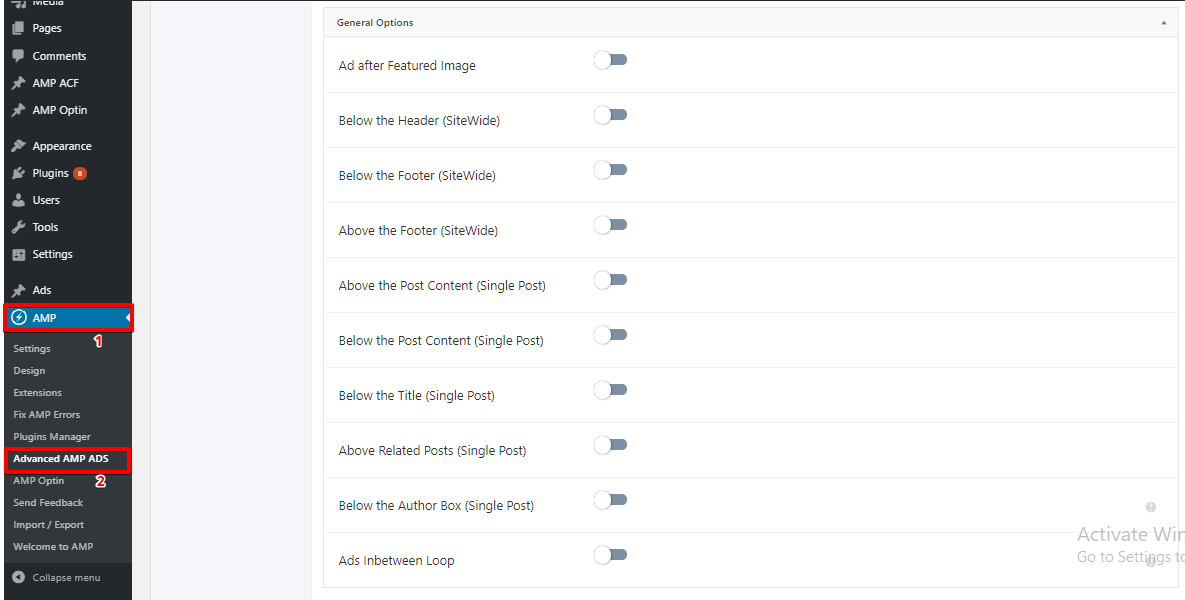
General Setting :
In this general setting, you will display the DoubleClick Ads like Header, footer, Above the Post Content and etc of the AMP pages.
- Ad after Featured Image: Once you enable this option select Doubleclick in advertisement type and enter the data slot then it will show ad after feature image.
- Below the Header (SiteWide): Once you enable this option select Doubleclick in advertisement type and enter the data slot then it will show ad below the header.
- Below the Footer (SiteWide): Once you enable this option select Doubleclick in advertisement type and enter the data slot then it will show ad below the footer.
- Above the Footer (SiteWide): Once you enable this option select Doubleclick in advertisement type and enter the data slot then it will show ad above the footer.
- Above the Post Content (Single Post): Once you enable this option select Doubleclick in advertisement type and enter the data slot then it will show ad above the post content.
- Below the Post Content (Single Post): Once you enable this option select Doubleclick in advertisement type and enter the data slot then it will show ad below the post content.
- Below the Title (Single Post): Once you enable this option select Doubleclick in advertisement type and enter the data slot then it will show ad below the title.
- Above Related Posts (Single Post): Once you enable this option select Doubleclick in advertisement type and enter the data slot then it will show ad above related posts.
- Below the Author Box (Single Post): Once you enable this option select Doubleclick in advertisement type and enter the data slot then it will show ad below the author box. This option will only be available in swift design only (Works from 0.9.97.10 and Above)
- Ads Inbetween Loop: Once you enable this option select Doubleclick in advertisement type and enter the data slot then it will show ad in-between loop. (Works only with 0.9.68 or higher version of the ampforwp core)
Sticky:
- Sticky Ads: Once you enable this option select Doubleclick in advertisement type and enter the data slot then it will show the sticky ad at the bottom of the screen then enable this option and enter the data.
4. After that click on the save changes button.
That’s it for this tutorial!
We hope it helped you. If you have any feedback or questions, then please share them in the comments section below.