We have three ways to add Advertisements to Facebook Instant Articles
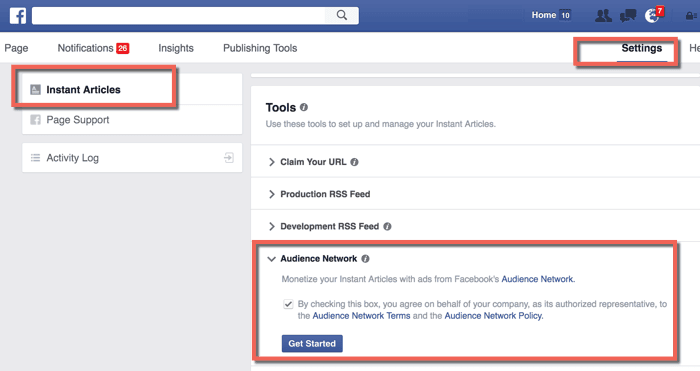
Step:1 – Go to your Facebook page Instant Articles settings & under tools, look for Audience Network.
Step:2 – Check the box & click on “Get Started”. This should bring up a screen like this:
Step:3 – Click on “Your Dashboard”. Here we will create the ad placement. Click on the “Placements” tab & that should bring up a screen like this:
Step:4 – Click on “Create Ad Placement” & give it a meaningful name. It’s important to provide a meaningful name as it will help us to track reporting by unique ad locations in Instant Articles.
Step:5 – You have the option to select from 3 different ad types:
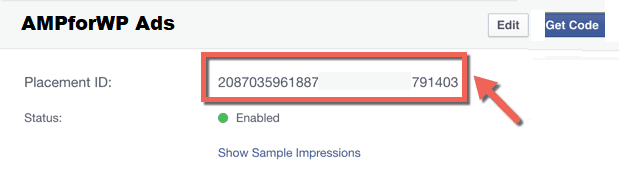
For Example, select the “Banner” ad format & click on save. Now, you should be able to see the ad placement ID. Just copy the placement ID
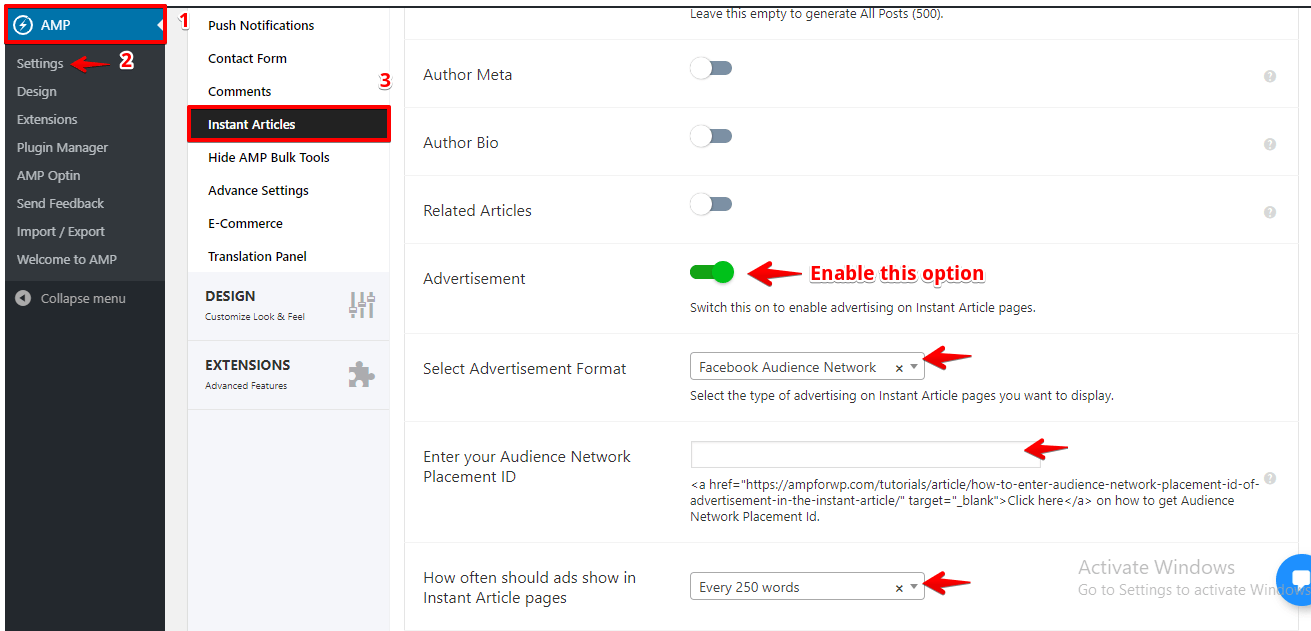
Step 6 – You will find this option in AMP option panel -> Settings -> Instant Articles ->Enable Advertisement option and in this “Select Advertisement Format” option you need to select “Facebook Audience Network” option and paste it in Audience Network Placement ID and after that click on the “Save Changes” button.
Step 1 – First you need to enable “Instant Articles” option you will find this option in the WordPress Dashboard -> AMP option panel -> Settings -> Instant Articles -> Enable “Instant Articles ” option like below the screenshot.
Scroll down a little to see this option
Step 2 – You need to enable Advertisement option and in this “Select Advertisement Format” option you need to select “Custom iframe URL” option and you need to enter custom iframe URL in this “ Enter your Custom iframe ad source URL” option and after that click on the “Save Changes” button like below the screenshot
Step 1 – First you need to enable “Instant Articles” option you will find this option in the WordPress Dashboard -> AMP option panel -> Settings -> Instant Articles -> Enable “Instant Articles ” option like below the screenshot.
Scroll down a little to see this option
Step 2 – You need to enable Advertisement option and in this “Select Advertisement Format” option you need to select “Custom Embed Code” option and you need to enter Custom Embed Code in this “ Enter your Custom Embed ad code” option and after that click on the “Save Changes” button like below the screenshot
That’s it for this tutorial!
We hope it helped you. If you have any feedback or questions, then please share them in the comments section below.
If you want to add an AWeber form in AMP then first you need to…
Webpushr is the fastest growing web push notifications platform that marketers love & developers rely…
Follow these steps to add Adobe Analytics in AMP Step 1: Go to WordPress Admin Area -> AMP…
Core Web Vitals are the subset of Web Vitals that apply to all web pages,…
The following reasons can be shown for non-indexing. Server error (5xx) Your server returned a 500-level…
We have added the Google Analytics 4 ( GA 4 ) integration in AMPforWP v1.0.80.…