If you want to add Benchmark form in AMP then first you need to purchase and install Opt-in Forms for AMP plugin.
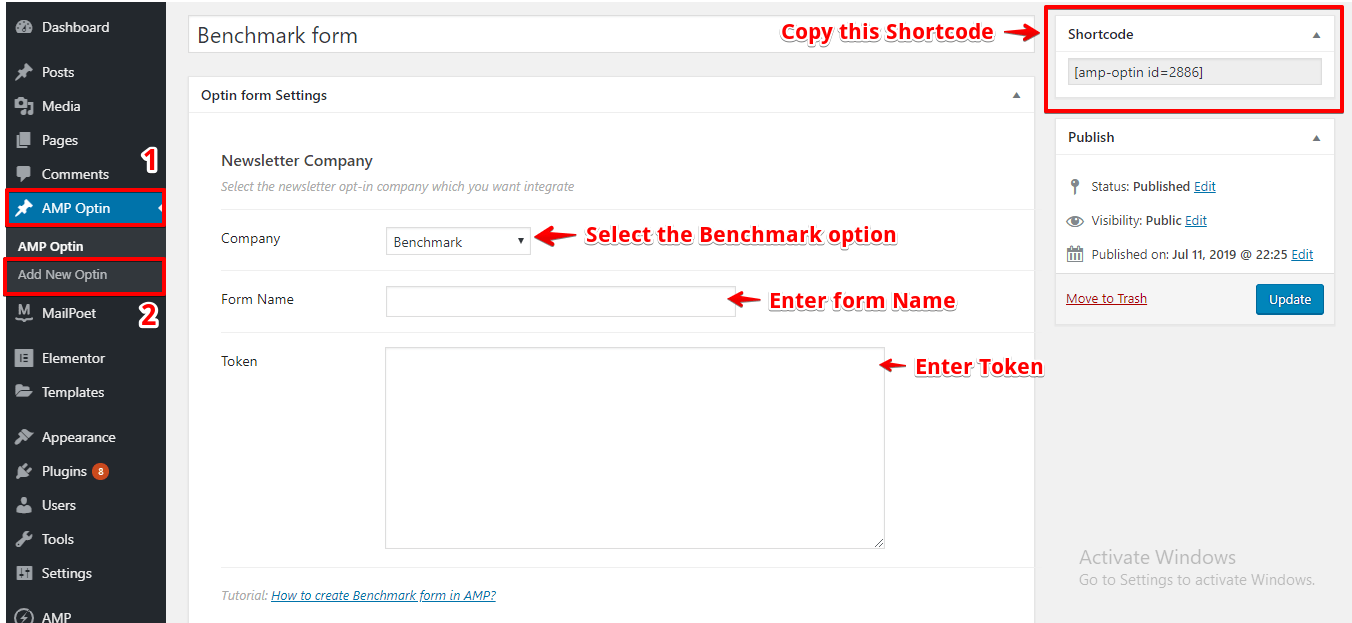
After installing you will find this option in WordPress Dashboard -> AMP optin -> Add New optin -> select “ Benchmark ” option -> now you need Form Name and Token.
Follow the simple steps to get all this Form Name and Token from Benchmark Account.
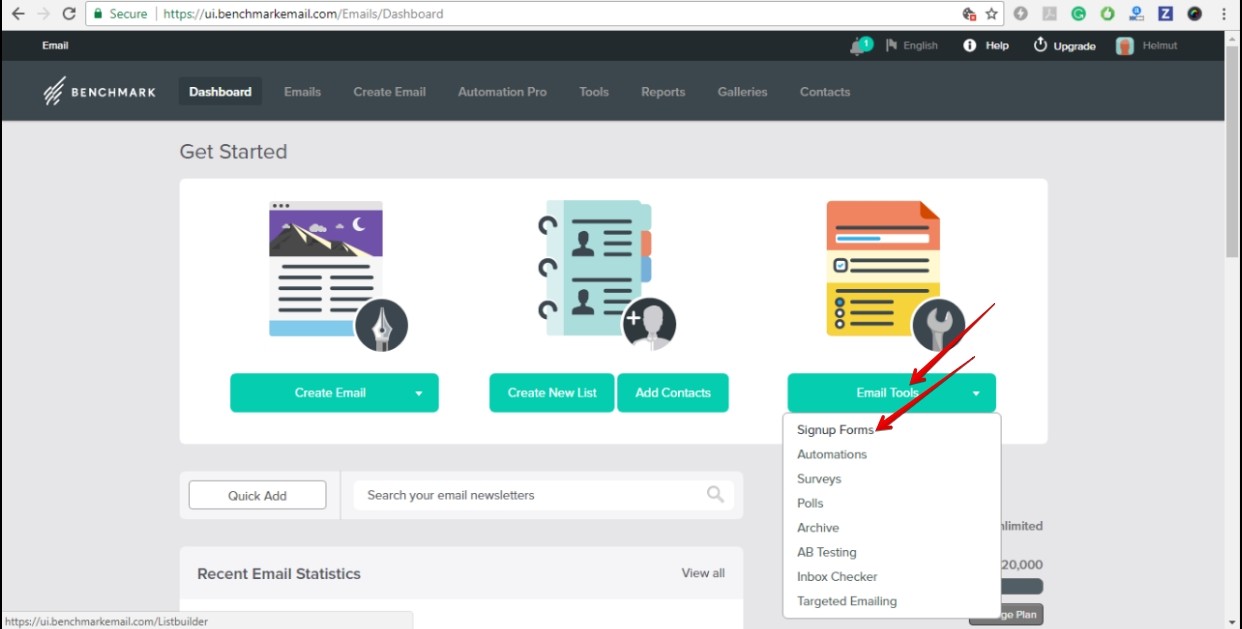
Step 1: First of all Login/SignUp at Benchmark than in the dashboard tab, select the Email Tools > Sign up Forms.
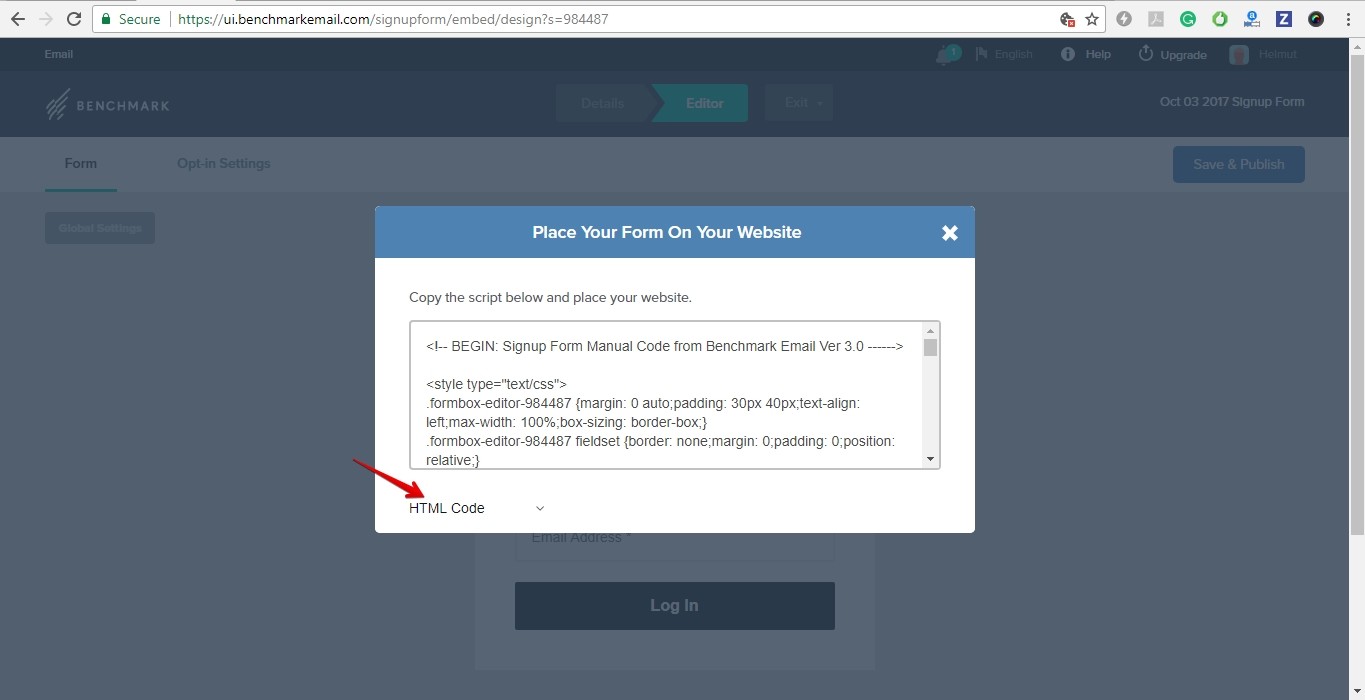
Step 2: Then create New Signup Forms, After creating the form, when you click the ‘save&publish’ button you will get the Javascript code, please select the HTML code. We need to get values from HTML code because, in AMP, Scripts are not allowed.
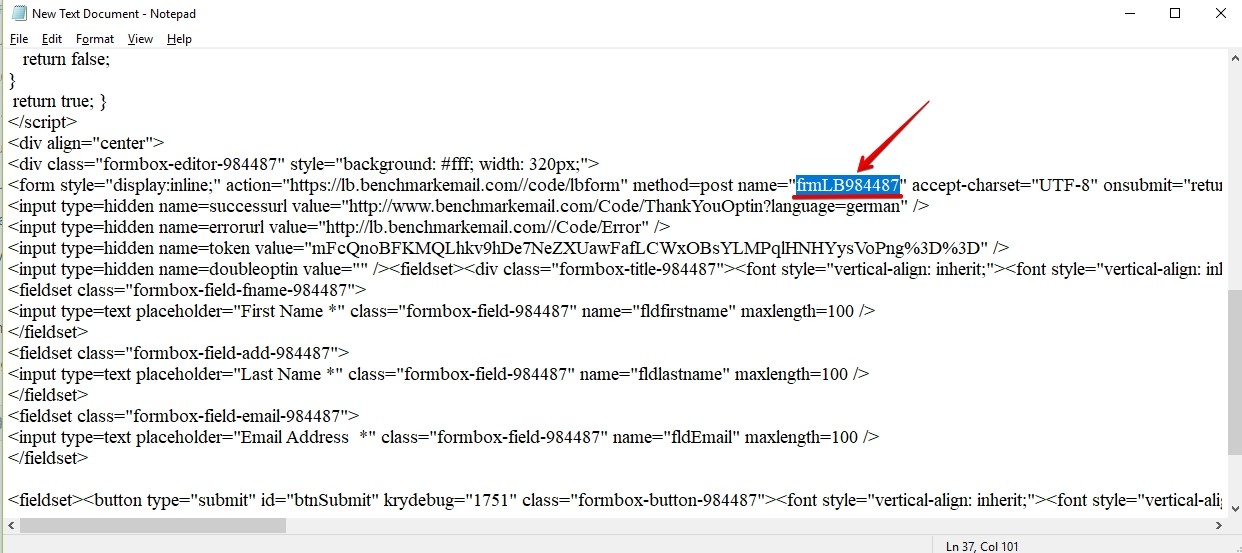
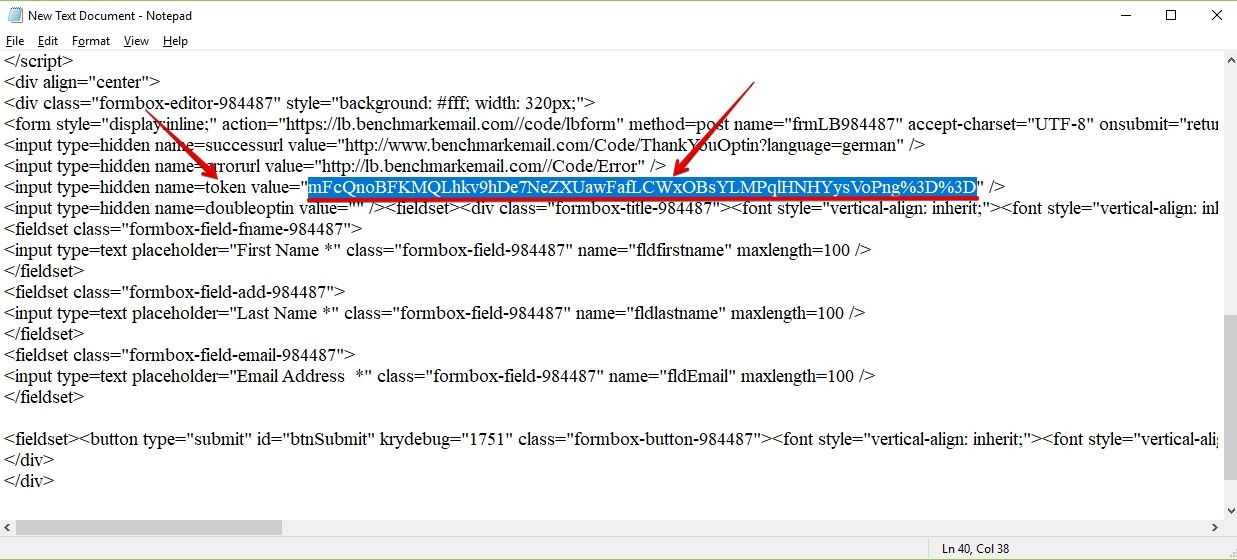
Step 3: Please copy the HTML markup in notepad or somewhere, It will very easy to find out the values. Then search the tag in the <form> called as name=” ” and copy the name value and paste it into the Form name option. And for the Token, Search for value Token and then copy the value and paste it into the Token option.
Step 4: Create a new AMP Opt-in
Step 5: Now select Benchmark from the Dropdown and paste the “Form Name” & “Token” which we have copied and place where you want to display the Benchmark Form.
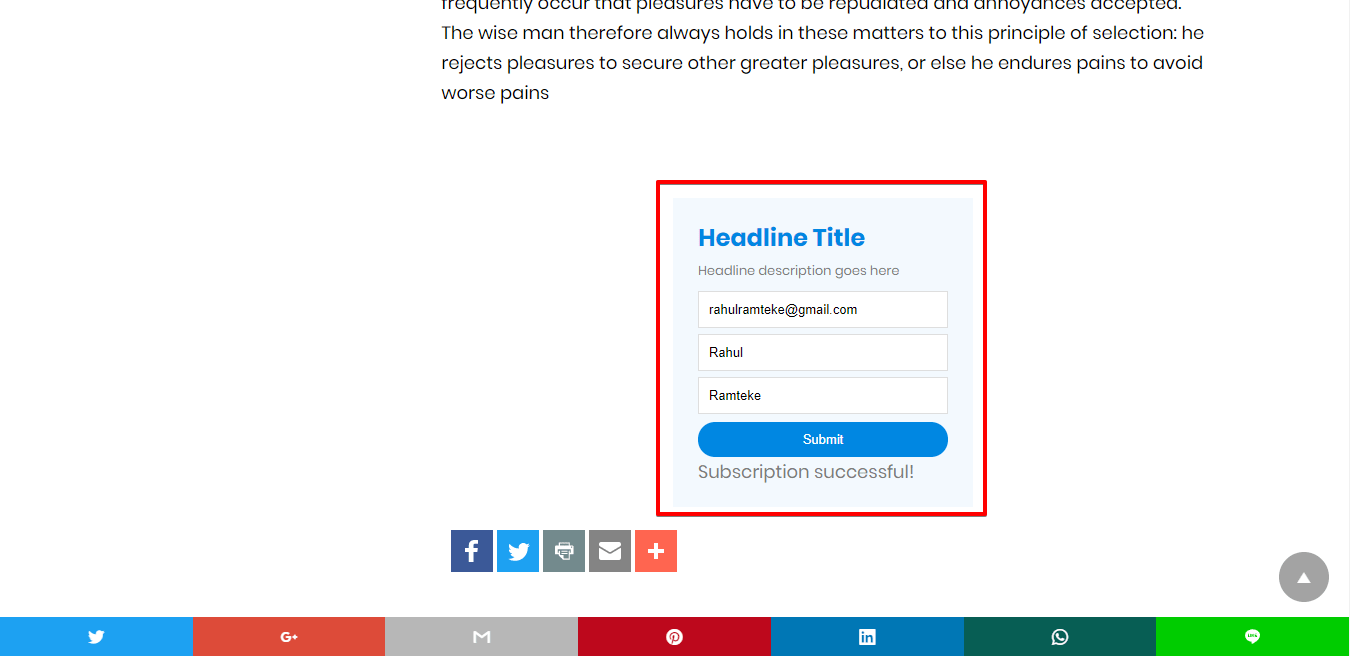
Make sure you need to fill this form and then click on the submit button after that you will get the “Subscription successful” message.
That’s it for this tutorial!
We hope it helped you. If you have any feedback or questions, then please share them in the comments section below.
If you want to add an AWeber form in AMP then first you need to…
Webpushr is the fastest growing web push notifications platform that marketers love & developers rely…
Follow these steps to add Adobe Analytics in AMP Step 1: Go to WordPress Admin Area -> AMP…
Core Web Vitals are the subset of Web Vitals that apply to all web pages,…
The following reasons can be shown for non-indexing. Server error (5xx) Your server returned a 500-level…
We have added the Google Analytics 4 ( GA 4 ) integration in AMPforWP v1.0.80.…